Set up two-factor authentication (2FA)
Turn on two-factor authentication with an authenticator app and save your backup codes.
Last updated: July 12, 2026
Turning on two-factor authentication (2FA) means that, in addition to your password, a 6-digit code from your authenticator app is required at login — making your account more secure.
Before you start
- Install an authenticator app (such as Google Authenticator) on your phone.
Steps
1. Start setup
Open Settings → Two-factor authentication and tap Start setup.
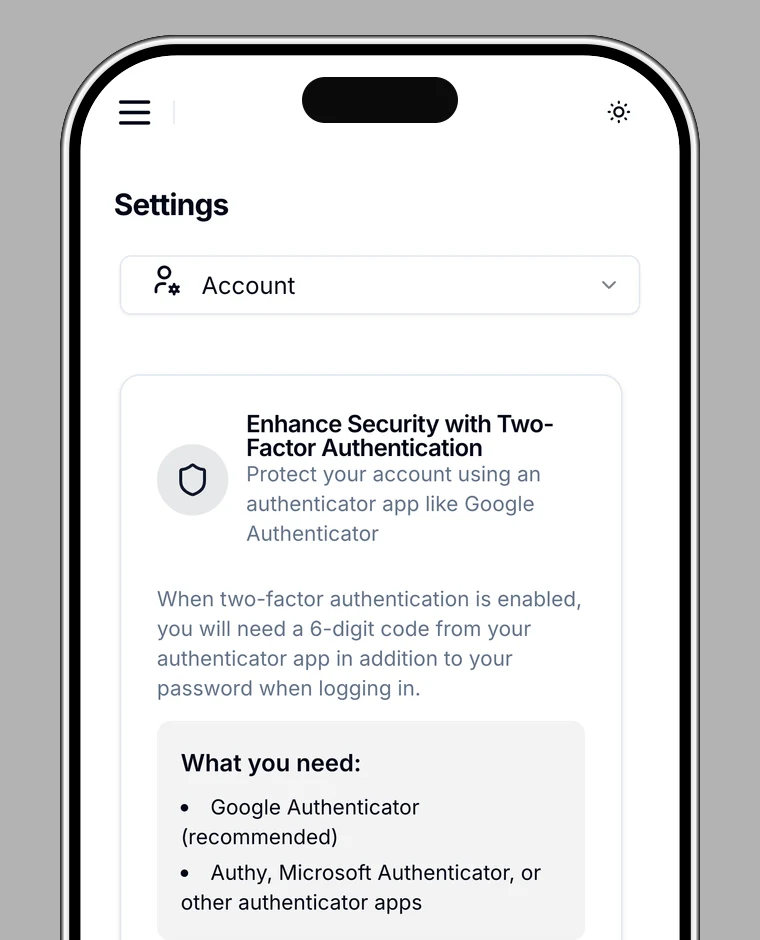
2. Scan the QR code
Scan the QR code with your authenticator app. If you can't scan it, enter the secret key manually instead.
3. Save your backup codes
Save the backup codes somewhere safe. You'll use them to access your account when your authenticator app isn't available (for example, if you lose your device).
4. Enter a code to enable
Enter the 6-digit code from your authenticator app to enable two-factor authentication.
About backup codes
- Backup codes are 8 characters (A–F, 0–9).
- If your authenticator app isn't available at login, choose Use backup code on the code entry screen and enter one.
- Each code works only once.
Turning it off
To disable two-factor authentication, go to Settings → Two-factor authentication → Disable two-factor authentication and enter your password.